
25.06.2026


Mark Novak
Author
Dolphin Cloud is a multi-tool platform designed to manage advertising across multiple Facebook ad accounts simultaneously. More precisely, it can work with as many accounts as you connect to the platform.
The workflow is straightforward:
- Connect your accounts to the platform via API.
- Select the accounts you want to work with and choose the required actions in Dolphin Cloud (upload creatives, create campaigns, etc.).
- The platform performs these actions across all selected accounts at once.
Let’s take a look at the platform’s key sections.
Ads Manager
This section is used to manage accounts, ad accounts, payment cards, fan pages, and Business Managers. Here you can add, remove, configure, and monitor them.

The most important functions in the Ads Manager section are:
- Add accounts
- Create fan pages and Business Managers
- Link payment cards to ad accounts or Business Managers
Adding Accounts
Accounts can be added in two ways: individually using a token or in bulk via account lists. Since bulk importing is the most popular and practical option, we’ll start with that.
To import accounts in bulk, click the corresponding button above the account list. An import window will open. Select the “Bulk Add” tab.

Then simply upload the account file received from your supplier and move to the “Data Check” tab. Here you can immediately assign proxies to the imported accounts.

Important: Never add or launch accounts without proxies. Otherwise, they may get banned immediately after being added to Dolphin Cloud.
Adding a Single Account
If you create Facebook accounts yourself, it is recommended to add them via token using the “Add One” tab.
Log in to the Facebook account and open the page source code. The token is usually easy to find because it is clearly labelled and typically looks similar to the example shown below.

Copy the token and paste it into the corresponding field.

Safe Account Import
The general principle of safe account importing is simple: first, interact with the account manually so Facebook sees genuine user activity.
Start by loading your accounts into an antidetect browser such as Dolphin Anty and perform some actions manually. If you farmed the accounts yourself, no additional preparation is required.
Next, integrate the account with Dolphin Cloud. Open the Dolphin Cloud settings section, copy the token provided there, and paste it into your antidetect browser.

Then return to the antidetect browser, remove the existing token, and replace it with the copied one.

If you’re using an antidetect browser other than Dolphin Anty, install the Dolphin Cloud extension inside the browser profile.

Paste your Dolphin Cloud token into the designated field, and your accounts will be connected.
Creating Fan Pages and Business Managers
To create fan pages or Business Managers, select the required accounts and click the corresponding button.

You will then be taken to the creation form. When creating fan pages, all you need to do is generate or choose page names and profile pictures.

Once a fan page has been created, it can be edited. You can change the bio, update the profile picture, connect Instagram, disable notifications, and more. To do this, select the account and open the “Tasks for Fan Page” tab.
When you click “Create BM”, a form will open where you can generate names and email addresses for Business Managers if you don’t already have ready-made email accounts.

To generate random names and email addresses, click the circular arrow icon.
Adding Payment Methods
Payment cards can be added from the “Ad Accounts” and “Business Managers” tabs.
To add a card, select the required ad accounts and enter the payment details:
- Card number
- Expiry date
- CVV code
- Cardholder name
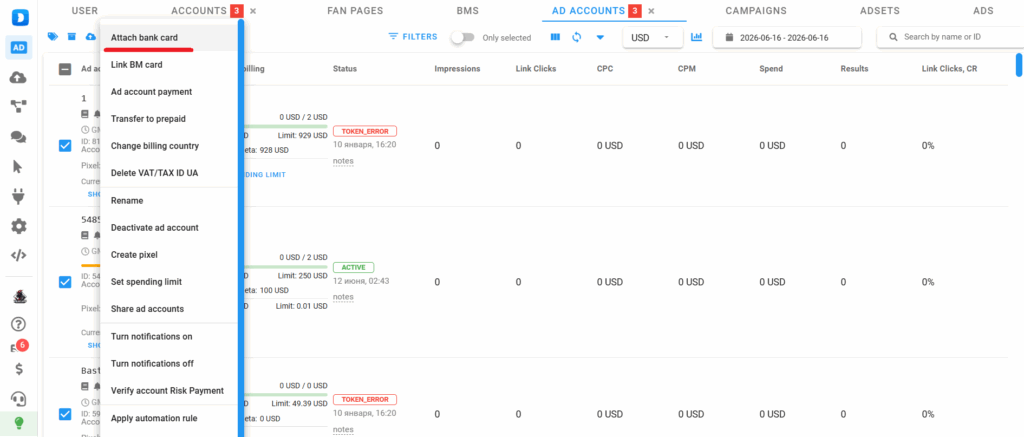


Cards can be attached to Business Managers in the same way. Select the Business Managers and click “Link Card to BM”.

The card linking form is almost identical to the one used for ad accounts.
Proxy Section
This section is used to add proxy ports, test them in advance, and quickly assign them to accounts when needed.


To add proxies, copy them from your provider and paste them into the platform. Once they appear in the list, select them and run a health check to verify they are working properly.
Launching Ads
Once accounts, cards, and proxies have been added, you can start launching ads. Open the “Create Ads” section.

The workflow is very similar to Facebook Ads Manager:
- Select a campaign objective, such as Leads.
- Configure campaign settings (buying type, automation rules, etc.).
- Set ad set targeting and budgets.
Before the final launch stage, however, you must add destination URLs and select the ad accounts that will run the campaigns.

Next, upload creatives and ad copy. You can also make them unique directly within the platform.
If you enable the “Uniqe” option, Dolphin Cloud will assign different metadata to each image. This helps Facebook avoid detecting that the same image has already been used or is currently running elsewhere.

Automation Rules
Unlike Facebook’s built-in automation, Dolphin Cloud automation rules are not limited to a single account and can be applied across multiple ad accounts simultaneously.
To create automation rules, open the corresponding section, define the conditions, and choose the action that should be triggered.


To apply a rule, open the Ad Accounts tab inside Ads Manager, select the required accounts, and click “Apply Automation Rule”.
Comments
This section allows you to monitor and manage comments under your ads.

To configure automatic comment moderation:
- Enter trigger words.
- Select the desired mode: keep or delete.
In Keep mode, comments containing trigger words remain visible while all others are removed.
In Delete mode, only comments containing trigger words are removed.
Team Collaboration and Sharing
You can add additional users to your Dolphin Cloud workspace and assign them roles with specific permissions.
Within team collaboration, you can share:
- Accounts
- Proxies
- Automation rules
Conclusion
Dolphin Cloud allows you to perform everything you would normally do inside Facebook Ads Manager, but at a much larger scale. Core functions include adding accounts, proxies, fan pages, and Business Managers, linking payment cards, and creating automation rules.
In addition, the platform offers tools for handling Risk Payment issues, moderating comments, and managing team workflows. It also includes other useful features, such as setting delays between card linking and campaign launches, appealing ad rejections, and more.
Dolphin Cloud is a lightweight and intuitive platform that most users can learn within one or two days, while the free trial period lasts for three days.
Mark Novak
Author
Similar articles by the author



Leave a comment
Thank you for your feedback!
Your review will be published after moderation.